


Introduction
Manually emailing customer invoices can consume significant Accounts Receivable time and create inconsistent delivery practices. NetSuite provides several ways to streamline this process, ranging from emailing an invoice when it is saved to sending selected invoices through a Bulk Email Mass Update or implementing fully automated delivery with SuiteFlow, SuiteScript, or an integration platform.
These options serve different purposes. NetSuite’s native Bulk Email capability is user-initiated, while unattended or scheduled invoice delivery generally requires a workflow, script, or integration. This guide explains each approach so you can select the method that best fits your invoice volume, approval process, and control requirements.
Choose the Right Invoice Emailing Method
NetSuite supports several approaches to invoice delivery:
| Method | Best for | Automatic? |
|---|---|---|
| To Be Emailed checkbox | Sending an invoice when it is saved | Yes, transaction by transaction |
| Bulk Email Mass Update | Sending selected invoices in a batch | No, user initiated |
| SuiteFlow workflow | Event-driven invoice delivery | Yes |
| SuiteScript or integration | Scheduled, high-volume, or complex processing | Yes |
Benefits of Batch Invoice Emailing
Automating invoice delivery provides several advantages:
- Reduce manual administrative work
- Improve invoice delivery consistency
- Accelerate customer payment cycles
- Minimize missed or forgotten invoices
- Standardize invoice email messaging
- Improve customer experience
- Reduce Accounts Receivable processing time
- Scale invoice processing as transaction volume grows
Before You Begin
Before configuring automated invoice emailing, verify the following.
1. Customer Records Have Valid Email Addresses
Navigate to:
Lists > Relationships > Customers
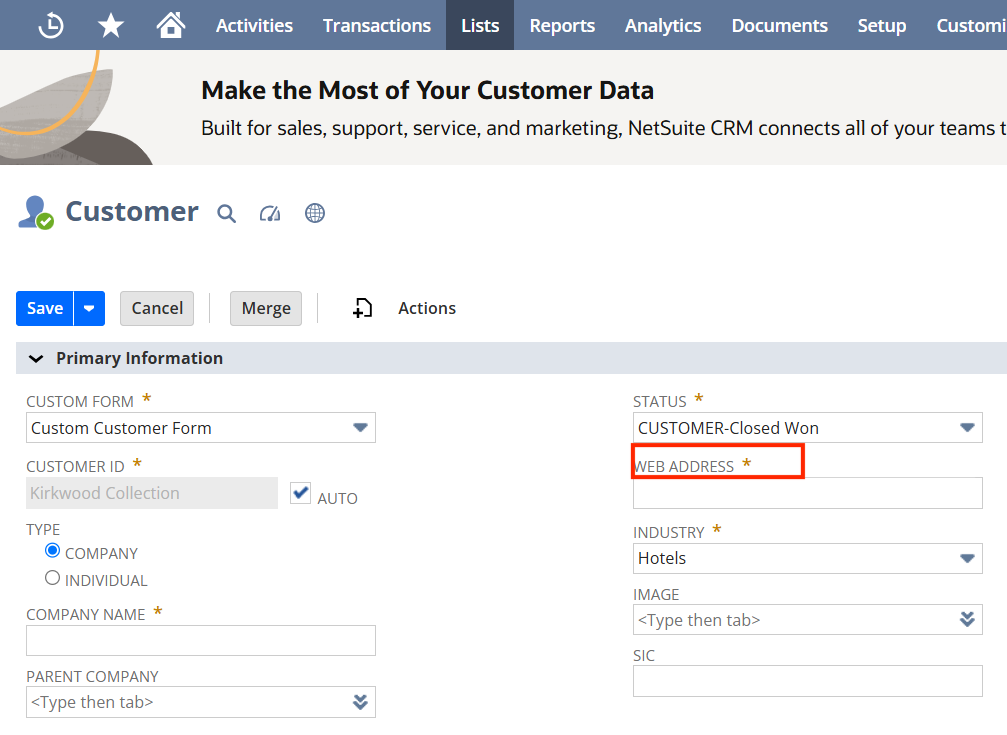
Open a customer record and confirm:
- Primary email address exists
- Invoice recipient email is correct
- Multiple invoice recipients are configured if needed
2. PDF Forms Are Configured
Invoices are typically attached as PDFs.
Navigate to:
Customization > Forms > Advanced PDF/HTML Templates
or
Customization > Forms > Transaction Forms
Verify:
- Invoice form is active
- Proper branding
- Logo
- Payment instructions
- Terms
- Remittance information

3. Email Preferences Are Enabled
Navigate to:
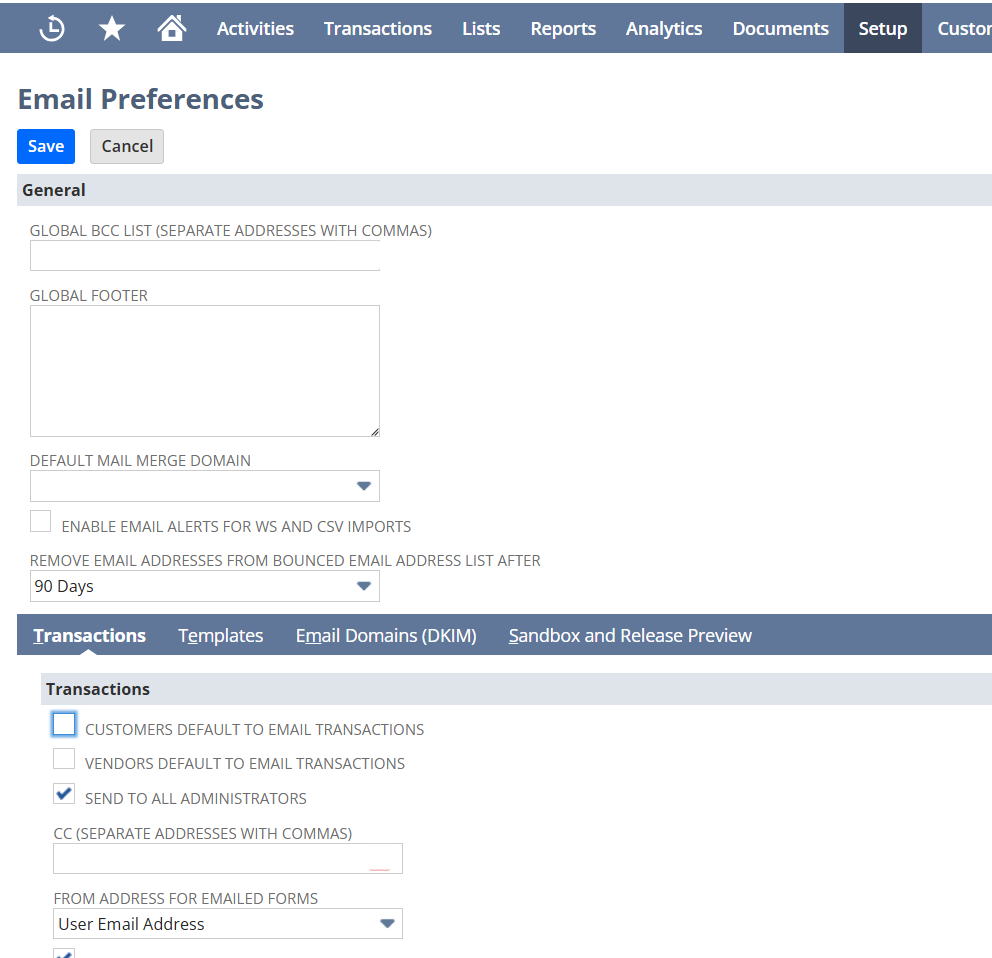
Setup > Company > Email Preferences and review email preferences.
Step 1: Review Transaction Email Preferences
Navigate to:
Setup > Company > Email > Email Preferences
On the Transactions subtab, review the default transaction email settings.
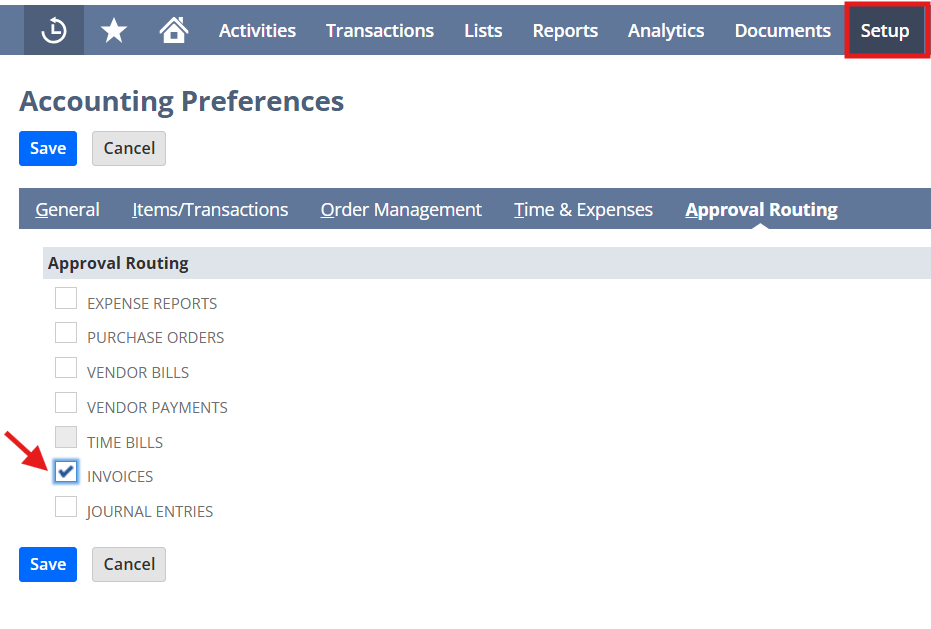
Separately, review invoice approval routing at:
Setup > Accounting > Accounting Preferences > Approval Routing
If invoice approval routing is used, confirm that the Invoices option is enabled and that the approval workflow controls when an invoice becomes eligible for delivery.
4. Correct the customer delivery preference location
The article currently refers to the Communication tab. Oracle’s documentation places the preferred transaction delivery settings on the customer’s Preferences subtab under Send Transactions Via.
Step 2: Configure Customer Delivery Preferences
Navigate to:
Lists > Relationships > Customers
Edit the customer record and open the Preferences subtab. Under Send Transactions Via, select the appropriate delivery method, such as:
- Fax
- A combination of methods
Also confirm the email address that should receive transaction communications.

Step 3: Review Invoice Approval Workflow
Organizations using approval workflows should verify that invoices are fully approved before they are eligible for batch emailing.
Navigate to:
Customization > Workflows
Review your approval workflow.
Typical lifecycle:
Draft > Pending Approval > Approved > Available for Email
Only approved invoices should be included in the automated email process.

Step 4: Send Invoice Emails in Bulk
Navigate to:
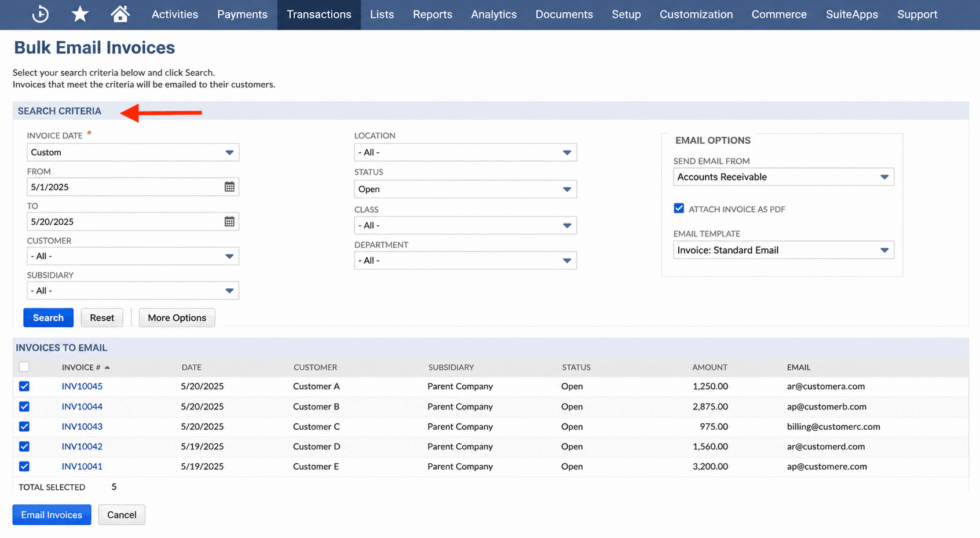
Lists > Mass Update > Mass Updates
Then:
- Expand Transactions
- Select Bulk Email
- Define the invoice criteria
- Select the recipient priority
- Select or create the email message
- Preview the qualifying transactions
- Process the update
Oracle specifically documents recipient priority among the transaction email address, customer email address, and contact email address.
Note: Navigation can vary depending on your NetSuite edition, enabled features, and custom roles. Some organizations instead use saved searches combined with scheduled scripts or workflows to automate invoice delivery.
Step 5: Schedule Automatic Batch Processing
Many organizations prefer to send invoices automatically every evening.
This can be accomplished using:
- Scheduled SuiteScript
- NetSuite Workflow
- Map/Reduce Script
- Third-party automation platforms
- Scheduled integrations
Typical automation process:
Invoice Approved

↓

Scheduled Process Runs

↓

Search Approved Unsent Invoices

↓

Generate PDF

↓

Email Customer

↓

Mark Invoice as Sent

↓

Log Activity
While scheduled scripts are a popular option for high-volume invoice processing, many organizations can accomplish their automation goals using NetSuite SuiteFlow. Workflows allow administrators to automatically trigger emails based on business events, such as when an invoice is approved, without extensive custom development. If you’re interested in learning more about configuring automated email notifications with SuiteFlow, check out our article, https://suiteanswersthatwork.com/easily-use-workflows-to-automatically-send-specialized-emails/, which walks through creating workflow-driven email processes in NetSuite. Although that article focuses on specialized email notifications, the same workflow concepts can be applied when designing automated invoice delivery solutions.
Step 6: Monitor Email Delivery
After invoices are sent, review:
Activities > Messages
or
Customer Communication tab
Verify:
- Email sent
- Delivery timestamp
- Sender
- Recipient
- PDF attachment
This provides an audit trail for customer communications.

Optional Enhancement: Use a Saved Search to Drive Automation
Many organizations create a saved search that identifies invoices ready to send.
Example filters:
Transaction Type = Invoice
Status = Open
Approval Status = Approved
To Be Emailed = True
Email Sent = False
Main Line = True
This saved search can be referenced by:
- Scheduled scripts
- Workflows
- SuiteFlow
- Celigo integrations
- REST integrations
This approach offers flexibility and ensures only qualifying invoices are processed.

Troubleshooting
| Issue | Likely cause | Recommended check |
|---|---|---|
| Invoice not selected | Criteria not met | Review approval, status, subsidiary, and custom control fields |
| No recipient | Missing transaction or customer email | Review recipient priority and customer record |
| Wrong recipient | Outdated customer data | Confirm transaction, customer, and contact email fields |
| No PDF attached | Form or template configuration | Review transaction form and PDF settings |
| Duplicate email | Missing sent-status control | Add a sent date or processing-status field |
| Workflow does not run | Context or trigger issue | Review workflow event, state, conditions, and execution log |
| Script fails | Deployment or governance issue | Review script deployment and execution log |
| Email not delivered | Email routing or domain issue | Review email preferences, DKIM, sandbox routing, and recipient server response |
Advanced Automation Options
Organizations with higher transaction volumes often extend NetSuite’s standard functionality.
Examples include:
SuiteFlow
Automatically trigger invoice emails after approval.
SuiteScript
Create custom rules such as:
- Send invoices by customer group
- Delay invoice delivery
- Combine multiple invoices
- Retry failed emails
- Add dynamic attachments
Celigo
Integrate invoice delivery with:
- Customer portals
- Document management systems
- CRM platforms
- EDI providers
SuiteAnalytics
Build dashboards showing:
- Invoices sent today
- Failed email count
- Outstanding invoices
- Average send time
- Customer delivery statistics
Real-World Example
Imagine a wholesale distributor processing 2,500 invoices every month.
Previously:
- AR specialists manually opened each invoice.
- Generated a PDF.
- Attached it to an email.
- Sent invoices individually.
After implementing automated batch emailing:
- Approved invoices were collected throughout the day.
- A scheduled process ran nightly.
- PDFs were generated automatically.
- Customers received invoices within minutes.
- AR staff shifted their focus from administrative tasks to collections and customer support.
The result was faster invoice delivery, improved operational efficiency, and a more consistent customer experience.

Conclusion
NetSuite can support efficient invoice delivery through native transaction emailing, Bulk Email Mass Updates, SuiteFlow, SuiteScript, and integration platforms such as Celigo. The best solution depends on whether invoices should be sent immediately, processed in a user-controlled batch, or delivered automatically on a schedule.
Before enabling automation, establish clear eligibility rules, validate customer email data, standardize invoice forms and templates, and implement controls that prevent duplicate delivery. A well-designed process should also provide visibility into successful sends, failures, retries, and exceptions so Accounts Receivable can manage invoice delivery with confidence.
About Suite Answers That Work
Suite Answers That Work is a NetSuite Solutions Provider with more than 30 years of combined experience. We specialize in NetSuite implementation, optimization, integration, rapid project recovery, rescue services, and custom development.
Every business is unique, but with more than 40 NetSuite clients over the last six years, our consultants have likely seen a similar challenge or helped create a similar solution.
For more information about NetSuite, ERP optimization, or AI-enabled business process improvement, contact us today.