


Introduction
Updating a shared administrative account in NetSuite is more than a simple profile edit. When you change the name or email address on a system account, you can affect system-generated emails, saved search notifications, workflow automation, and user access.
Whether you are converting a personal account into a generic NetSuite Admin account or troubleshooting email sender verification, it is important to make the change carefully. A missed setting can lead to account lockouts, undeliverable messages, misdirected replies, or broken reporting workflows.
This guide walks through how to update a NetSuite administrative account, review email routing, and monitor system communications after the change.
Why NetSuite Admin Email Changes Matter
In many NetSuite environments, a shared administrator or system user is tied to:
- Scheduled saved search emails
- Workflow-triggered notifications
- System-generated alerts
- Administrative reporting and monitoring
Changing the account name or email address without reviewing these dependencies can disrupt business processes. A proper update helps preserve email routing, maintain audit history, and reduce the risk of missed communications.
Step 1: Update the NetSuite User Profile
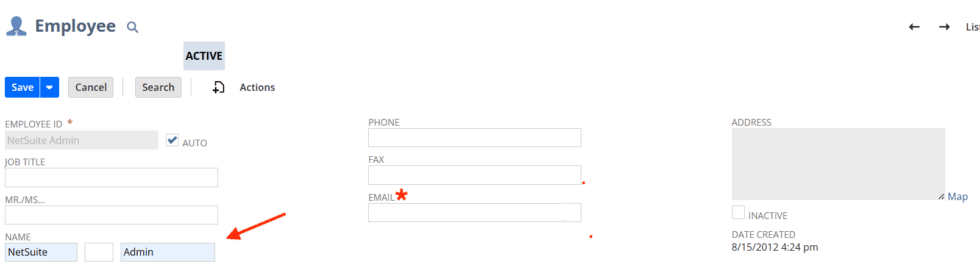
To transition an account from an individual user to a generic system role, such as changing “Jennifer Moreau” to “NetSuite Admin”:

- Navigate to Employees > Lists > Employees
- Edit the employee record
- Change the Name field to NetSuite Admin
- Update the Email field to the new shared or system-managed address
Best practice: preserve the original email address
Before saving the change, store the original email in the Alternate Email field. This helps preserve record history and provides a fallback contact option when needed.
This step is especially helpful when an existing account owns searches, workflows, or other automated processes tied to email delivery.
Step 2: Review NetSuite Saved Search Email Sender Settings
Changing the employee name or email does not automatically update every sender configuration in NetSuite.
Go to: Lists > Search > Saved Searches
Then identify saved searches associated with the updated account.
Check the email “From” settings
On the Email tab of each relevant saved search, review:
- Specific Sender
- Author
- Any reply or sender-related settings tied to the prior user
Update these values so replies and outbound messages route through the correct NetSuite Admin account.
Confirm search ownership
It is also important to verify whether a saved search should remain owned by:
- A named individual
- A shared system account
- A functional admin account
This reduces confusion and keeps routing aligned with business intent.

Step 3: Separate Scheduled Emails from Triggered Emails
Not all NetSuite emails come from scheduled processes. Some emails are generated by record events, alerts, or workflow triggers rather than a time-based schedule.
Examples of triggered emails
Examples may include:
- Monthly expense reminders
- Approval notifications
- Project or task-based alerts
- Workflow-driven record updates
Adjust your monitoring filters
When reviewing email activity, do not rely only on scheduled email logs. To get a more complete picture:
- Include Send Triggered Emails
- Remove Scheduled Only filters when appropriate
- Review both scheduled and alert-driven activity
This is one of the most common reasons administrators think a sender update worked, only to later discover certain notifications are still coming from the wrong account.

Step 4: Monitor NetSuite Email Delivery After the Change
After updating the admin account, set a short post-change monitoring period.
Recommended hyper-care checklist
- Notify impacted stakeholders that the sender name has changed
- Review the Sent Email List for at least 24 to 48 hours
- Watch for undeliverable messages or bounce-backs
- Confirm that replies are going to the correct mailbox
- Validate that critical saved searches and alerts are still being sent
This step helps confirm that the NetSuite account update did not interrupt reporting, approvals, or automated communications.
Common NetSuite Issue: Project Task Assignees
During this process, administrators sometimes run into issues with Project Task Assignees.
NetSuite does not natively support bulk-editing inactive assignees in all scenarios. In some cases, inactive users must be removed manually before changes to project tasks can be saved successfully.
This issue is not directly tied to system-generated emails, but it can surface during broader account cleanup or user-transition work.
Conclusion
Updating a NetSuite administrative account requires more than changing a name and email field. To avoid broken automation and misrouted messages, you should also review saved search sender settings, distinguish between scheduled and triggered emails, and monitor post-change delivery closely.
A structured approach helps maintain reliable NetSuite email routing, protects system communications, and supports smoother administration as roles or responsibilities change.
Need Help with NetSuite Administration or Optimization?
We are a NetSuite Solutions Provider with more than 30 years of combined experience across:
- NetSuite implementation
- Optimization
- Integration
- Project recovery and rescue
- Custom development
Across 50+ NetSuite clients over the past seven years, our consultants have seen a wide range of accounting, automation, and reporting challenges. Whether you need help troubleshooting a specific issue or improving your broader NetSuite environment, our team can help.
Contact our NetSuite consultants to discuss your project here.