


Introduction
NetSuite integrations rarely fail because “NetSuite broke.” More often, they fail because a security change exposes something that was already fragile: an old token, a role permission gap, a hardcoded endpoint, an expired certificate, or middleware that was never tested in Release Preview.
As NetSuite continues modernizing authentication, admins should pay close attention to legacy Token-Based Authentication, OAuth 2.0 setup, role permissions, SuiteScript dependencies, and middleware monitoring.
Below are seven areas to review before your next NetSuite upgrade.
1. Legacy Token-Based Authentication Dependencies
Many older NetSuite integrations still rely on Token-Based Authentication, commonly called TBA. TBA has been widely used for RESTlets, SOAP web services, and middleware connections, but NetSuite is clearly pushing customers toward OAuth 2.0.
Why this matters
If your integration depends on old consumer keys, token IDs, token secrets, or a user role that has not been reviewed in years, a release, sandbox refresh, role change, or vendor update can suddenly break the connection.
Step-by-step check in NetSuite
- Go to Setup > Integration > Manage Integrations.
- Open each integration record.
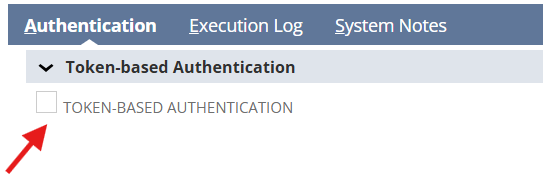
- Click the Authentication tab.
- Review whether Token-Based Authentication is enabled.
- Confirm the integration name matches an active system or vendor.
- Document the owner, purpose, middleware, and business process supported by the integration.
Admin tip
Create a simple integration inventory with these columns:
- Integration name
- Vendor or system
- Authentication method
- Owner
- Business process affected
- Last successful test date
- Sandbox tested: Yes/No
2. OAuth 2.0 Is Not Fully Configured
OAuth 2.0 is becoming the preferred approach for modern NetSuite integrations, especially REST web services, RESTlets, and SuiteAnalytics Connect. However, OAuth 2.0 requires more than checking a box on the integration record.
Why this matters
OAuth 2.0 failures often come from incomplete setup, missing scopes, incorrect redirect URIs, missing role permissions, or authorization that was not repeated after a sandbox refresh.
Step-by-step check in NetSuite
- Go to Setup > Integration > Manage Integrations.
- Open the integration record.
- Click the Authentication tab.
- Confirm whether OAuth 2.0 is enabled.
- Review the grant type being used:
- Authorization Code Grant
- Client Credentials / Machine-to-Machine
- Confirm the redirect URI is correct if using Authorization Code Grant.
- Confirm the correct API scopes are selected.

Admin tip
Do not assume OAuth 2.0 is working just because it is enabled. Test the full connection from the external application or middleware.
3. Client Credentials Certificates Are Missing, Expired, or Not Rotated
Machine-to-machine integrations using OAuth 2.0 Client Credentials depend on certificates. If the certificate is missing, expired, revoked, or not mapped correctly, the integration can fail even when the integration record looks fine.
Step-by-step check in NetSuite
- Go to Setup > Integration > Manage Authentication > OAuth 2.0 Client Credentials (M2M) Setup.
- Review the mappings listed.
- Confirm the integration record, entity, role, and certificate are correct.
- Check whether the certificate is active.
- Confirm there is a documented certificate rotation process.

Admin tip
Build a calendar reminder to review certificate expiration and rotation before each NetSuite release window.
4. Role Permissions Changed or Were Never Properly Scoped
Authentication may succeed, but the integration can still fail if the role does not have the right permissions.
Common symptoms
- RESTlet returns permission errors
- SuiteTalk request fails for one record type
- Middleware can create customers but not sales orders
- Integration works in production but fails in sandbox
- Integration works for one subsidiary but not another
Step-by-step check in NetSuite
- Go to Setup > Users/Roles > Manage Roles.
- Open the role used by the integration.
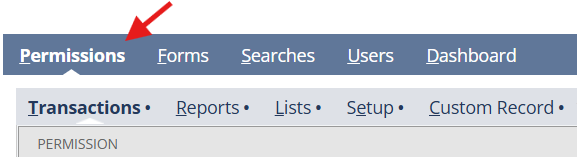
- Review the Permissions tab.
- Check permissions under:
- Transactions
- Lists
- Setup
- Custom Records
- Confirm the role has the required web services, RESTlet, or OAuth permissions.
- Review subsidiary, department, class, and location restrictions if applicable.
Admin tip
Avoid using Administrator roles for integrations. Create dedicated integration roles with only the permissions needed.
5. Sandbox Refreshes Broke Authorization
A sandbox refresh can reset or invalidate pieces of the integration setup. OAuth authorization may need to be completed again, mappings may need review, and external systems may still be pointing to old sandbox details.
Step-by-step check in NetSuite
- After a sandbox refresh, go to Setup > Integration > Manage Integrations.
- Confirm the integration record exists and is enabled.
- Review OAuth or TBA settings.
- Go to OAuth 2.0 Client Credentials (M2M) Setup, if applicable.
- Confirm the mapping still exists.
- Ask the external system owner to reconnect or reauthorize the sandbox connection.
- Run a controlled test transaction.

Admin tip
Maintain a “post-refresh integration checklist” so testing does not depend on memory.
6. SuiteScript or RESTlet Errors Are Being Misdiagnosed as Authentication Issues
Not every failed integration is an authentication problem. Sometimes the login succeeds, but the RESTlet, User Event Script, Map/Reduce Script, or Scheduled Script fails after the request reaches NetSuite.
Common examples
- Governance limits exceeded
- Required field missing
- Record type changed
- Custom field script ID changed
- Subsidiary or classification restriction blocks the record
- Script deployment is inactive
- Script only allows certain roles
Step-by-step check in NetSuite
- Go to Customization > Scripting > Script Deployments.
- Open the deployment used by the integration.
- Confirm the deployment is released and active.
- Review audience, role, and execution context settings.
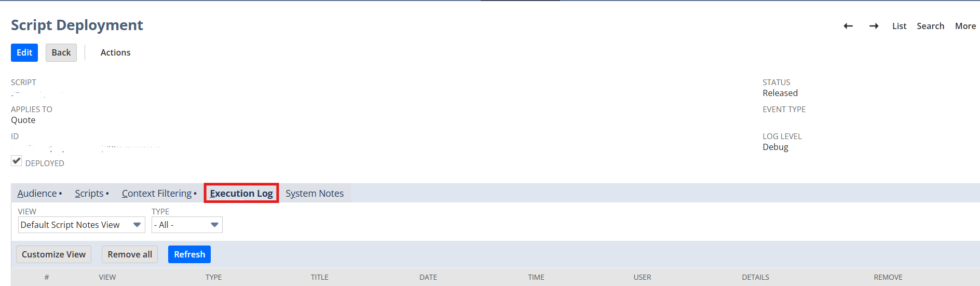
- Open the Execution Log.
- Review recent errors.
- If available, use Application Performance Management to review SuiteScript performance and failures.
Admin tip
When troubleshooting, separate the issue into two questions:
- Did the external system successfully authenticate?
- Did the NetSuite script or record action complete successfully?
That distinction saves hours of troubleshooting.
7. Middleware Was Not Tested Against the Release Preview Account
Many integrations depend on middleware such as Celigo, Boomi, MuleSoft, Workato, Dell Boomi, Shopify connectors, EDI platforms, banking tools, warehouse systems, or custom iPaaS flows.
Even if NetSuite is ready, middleware may need updated credentials, endpoints, permissions, saved searches, field mappings, or API settings.
Step-by-step check in NetSuite
- Identify your critical middleware integrations.
- Log in to your Release Preview or sandbox account.
- Run one test for each major process:
- Customer sync
- Item sync
- Sales order import
- Fulfillment export
- Invoice creation
- Payment import
- Inventory update
- Review middleware logs.
- Review NetSuite execution logs and system notes.
- Document every error and assign an owner.

Admin tip
Do not only test whether the integration connects. Test whether the full business process completes.
Pre-Upgrade Integration Checklist
Before your next NetSuite upgrade, review the following:
- List every active integration.
- Identify whether each uses TBA, OAuth 2.0, RESTlets, SOAP, REST web services, SuiteAnalytics Connect, or middleware.
- Confirm integration records are enabled.
- Confirm roles and permissions are correct.
- Review OAuth 2.0 scopes and redirect URIs.
- Review Client Credentials mappings and certificates.
- Test after sandbox refresh.
- Review SuiteScript execution logs.
- Test middleware flows end-to-end.
- Document the owner of each integration.
Conclusion
NetSuite security changes are not just technical updates. They are an opportunity to clean up old integrations, remove unnecessary access, modernize authentication, and reduce business risk.
If your company depends on integrations for order management, billing, inventory, ecommerce, banking, EDI, or reporting, do not wait until the upgrade weekend to test them.
A few hours of review before the release can prevent days of disruption afterward.
About Suite Answers That Work
Suite Answers That Work is a NetSuite Solutions Provider with 30+ years of combined experience. We specialize in NetSuite implementation, optimization, integration, rapid project recovery, rescue services, and custom development.
Every business is unique, but with 40+ NetSuite clients over the last six years, our consultants have likely seen your challenge or created a similar solution.
If you would like more information about NetSuite, ERP optimization, or AI-enabled business process improvement, contact us today.